
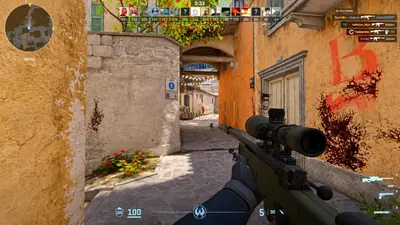
How to Increase FPS in Counter-Strike 2
Graphics presets, driver settings, and Windows toggles that raise average FPS and cut stutter in CS2.
Counter-Strike 2 on Source 2 stresses both CPU and GPU. You want high average FPS and stable frame time, especially when smokes bloom or five models trade on a bombsite.
Start with in-game video
Apply the competitive preset from best CS2 settings, then lower Particle Detail and Shader Detail first. Dynamic smokes are pretty but costly; Low particle detail reduces hitching during set pieces.
Windows and background apps
- Enable Game Mode in Windows Settings → Gaming
- Close browser tabs, Discord hardware acceleration tests, and RGB suites while scrimming
- Set power plan to High performance on laptops
- Keep at least 15–20 GB free on the drive where CS2 is installed
NVIDIA and AMD control panels
Prefer Prefer maximum performance for CS2. Disable triple buffering unless you know you need it. On NVIDIA, use Low Latency Mode Ultra when Reflex is unavailable. On AMD, enable Anti-Lag for supported titles.
Launch options and FPS caps
Use `-novid -high +fps_max 0` as a baseline. Cap FPS slightly above your refresh only if you need to limit heat on a thin laptop. Uncapped FPS with V-Sync off is standard for most desktop players.
Hardware reality check
If averages stay under 60 on 1080p Low, read CS2 settings for low-end PCs and compare your parts to Counter-Strike 2 PC requirements. Upgrading RAM or storage often helps as much as a new GPU on older office machines.